Does Nubo replace the macOS Dock?
While it runs, yes. Nubo hides the macOS Dock and puts its own in the same place. Quit Nubo and the macOS Dock comes back, the way you left it.
How does Nubo sort my apps?
By kind, into up to nine folders: Web, Chat, Work, Dev, AI, Design, Media, Utilities and More Apps. Browsers go in Web, Messages and Slack in Chat, Mail and Calendar in Work, editors and Terminal in Dev. Inside each folder, the apps you use most come first; Nubo counts that on your Mac only. Before tidying you can move any app to another folder or keep it out of folders, and Put It Back returns the Dock to how it was before the last tidy.
Does Tidy Up sort new apps by itself?
No, nothing moves without you. A new app lands after your loose apps. Run Tidy Up again whenever you like: it keeps your folders, so the keys you gave them still work.
What does ⌥-click on a folder do?
It brings forward the apps in that folder that you already have open, laid out the way you picked: side by side, main and stack, or where you left them. Every other app is hidden, and nothing is quit, so coming back is instant. Nothing new opens either: a folder of five browsers brings back the one you’re using, and if none of them is open, only the first one starts. To open them all, choose Open All from the folder’s menu.
Which shortcuts does it use?
⌃⌥ and a letter you choose for each app or folder. Press it once and the app comes forward alone, again and everything is back as it was. ⌥Tab jumps between open apps. You can turn any of them off.
Why does it ask for Accessibility and Screen Recording?
Accessibility lets a folder arrange its windows when you ⌥-click it. Screen Recording is only used for the window previews you see when you hover an app. Nothing leaves your Mac.
What does Nubo change on my Mac?
While it runs, it hides the macOS Dock. If you add the Screenshots widget and say yes, macOS saves new screenshots to Pictures › Screenshots instead of the Desktop; that stays until you choose Save to Desktop Again. Everything else stays inside Nubo.
Does the Clipboard keep what I copy?
Only while Nubo runs, and only if you add the Clipboard widget. The last 30 copies stay in memory, are never written to disk and are gone when Nubo quits. Copies from password managers are skipped, and Clear History empties it at any time.
Is it safe to give the Sales widget my Stripe, Polar, Dodo or RevenueCat key?
Make a key that can only read: in Stripe a restricted key with Read access to Balance, in Polar a token with only metrics:read, in Dodo Payments a key with Read access to Payments, in RevenueCat a V2 key with read access to Charts & Metrics and Projects. Nubo keeps it in your Keychain, sends it only to that service to read your sales, and never changes anything. Forget API Key removes it.
What is the little cloud in the menu bar?
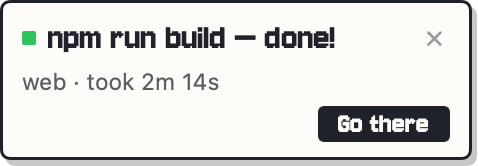
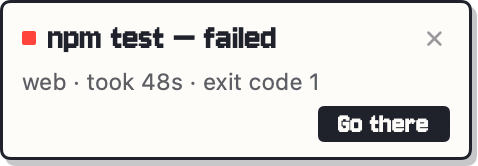
That’s Nubo. It shows Claude Code and Codex sessions, and long Terminal commands once you turn that on, while they run. When one finishes or needs you, a note drops down from the cloud. You can hide the cloud in Settings.
Why does the Headphones widget ask for Bluetooth?
Only to connect and disconnect your headphones when you click. The battery levels come from macOS, the same ones System Information shows.
Does it work with more than one display?
Nubo's Dock sits on your main display, on every Space. Folders and menus open on the display you're pointing at, and desks remember where windows go for each display setup, so working on the laptop alone won't undo your layout at your desk.
Which Macs does it run on?
Any Mac with macOS 14 Sonoma or later, Apple silicon or Intel.
Is it a subscription?
No. You pay once and get every 1.x update.
Can I use it on more than one Mac?
Yes. Pick 3 Macs when you buy: $9.99 for one license that works on up to three of your Macs, like a laptop, a desktop and the one at work.